# Making Amazon's card component with Angular
# Introduction
If you have seen [Amazon](https://www.amazon.in/) you will notice that they use cards quite a lot. Infacts cards are a common feature of many websites, and it makes sense if we make it a component thus increasing reusability.
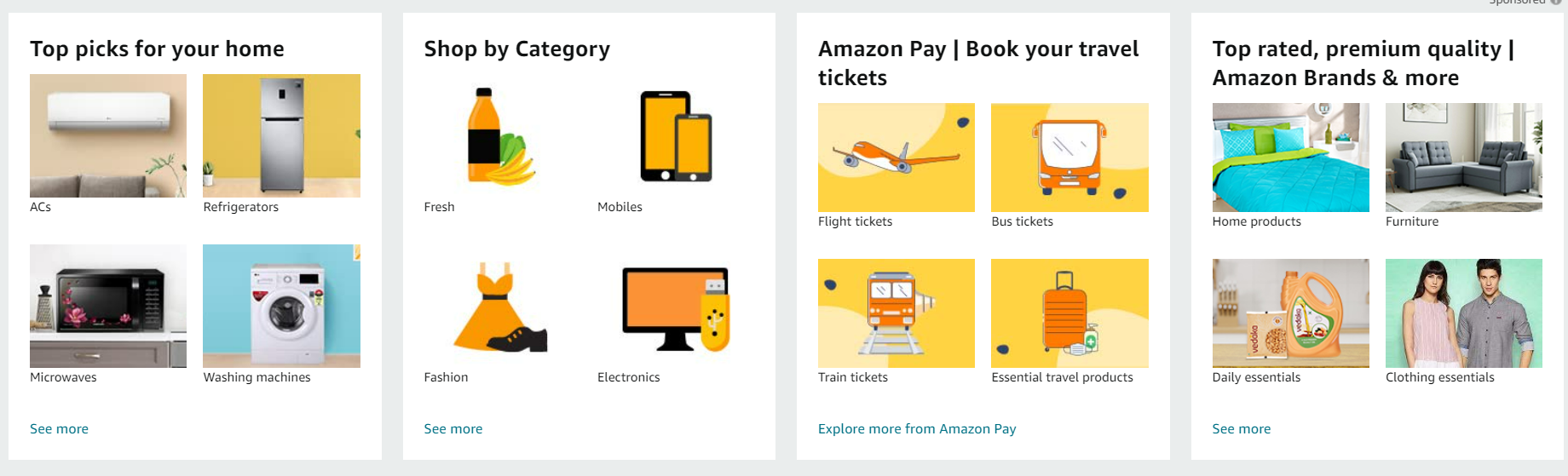
In this tutorial we will try to replicate the same using Angular, and in the process will cover a few topics
*Concepts Covered* -
- *Creating components*
- *Interpolation and property binding*
- *ngIf & ngFor directives*
- *Passing data from parent to child component*
Before you get overwhelmed, lets get a gist of these concepts in following section
---
## Concepts that will be used
### [Interpolation](https://angular.io/guide/interpolation)
Text interpolation lets you incorporate dynamic string values into your HTML templates i.e. Get data from class to template
Example -
```html
// In app.component.ts
title = 'Hello World';
// In app.component.html
{{title}}
// insert between html tags
// Or in html attribute
```
### [Property binding](https://angular.io/guide/property-binding)
Property binding in Angular helps you set values for properties of HTML elements or directives. We can use property binding to implement toggle button functionality, set paths programmatically, and share values between components.
Most of the time interpolation and property binding can achieve same thing.
```html
![]() // Write template expn inside quotes
// Write template expn inside quotes
 Interpolation is usefull in longer expns
```
### [ngIf & ngFor directives](https://angular.io/guide/built-in-directives)
Directives are classes that add additional behavior to elements in your Angular applications. There are 3 type of directives - Components, Attribute directives _(NgClass,NgStyle)_ , Structural directives _(NgFor, NgSwitch)_
```html
//ngIf example
Interpolation is usefull in longer expns
```
### [ngIf & ngFor directives](https://angular.io/guide/built-in-directives)
Directives are classes that add additional behavior to elements in your Angular applications. There are 3 type of directives - Components, Attribute directives _(NgClass,NgStyle)_ , Structural directives _(NgFor, NgSwitch)_
```html
//ngIf example
Display if part
Something else
//ngfor example
```
### [Passing data from parent to child](https://angular.io/guide/inputs-outputs)
Using @Input decorator in a child component or directive we can signify that the property can receive its value from its parent component.
```ts
// Inside parent.component.html
// Inside child.component.ts
export class ChildComponent{
@Input() data: string;
}
```
---
## Setting up project
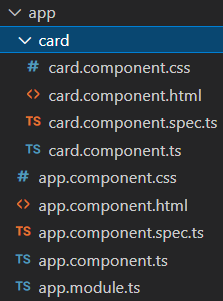
First of lets create a project, we will be using Angular CLI( a command line tool) for helping us create a project
```bash
// Create a new project
ng new cards
// Create a component card
ng g c card
```
We create a card component, for the purpose of reusability, now everytime we need card we can use in app or any other component.
Our project structure should look something like this -
## Note on Dynamic data
Now supposedly we will get data from some api/file in parent(app) component and we will have to pass it to child(card) component. For simplicity of this tutorial, let's say we have receive data in following format and need to pass this to card component.
```ts
posts = [
{
title: 'card title ',
links: ['#','#',..],
imageUrls: ['url1','url2',..],
imageCaptions: ['caption1','caption2',..]
}, .. ]
```
---
# Working on Application
Now we have enough conceptual knowledge to create cards.
#### _app.component.ts_
```ts
import { Component } from '@angular/core';
@Component({
selector: 'app-root',
templateUrl: './app.component.html',
styleUrls: ['./app.component.css']
})
export class AppComponent {
// data we will pass from parent to child (In real world, will get from api)
posts = [
{
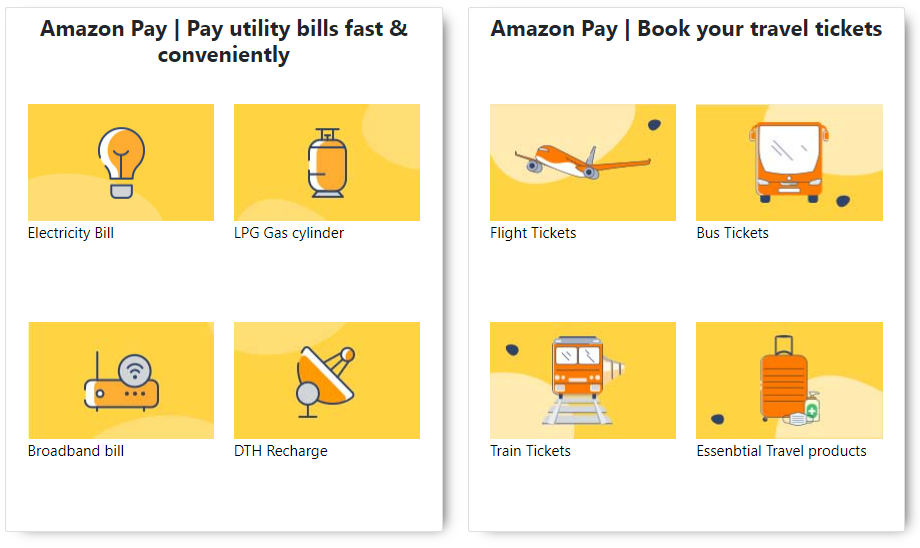
title: 'Amazon Pay | Pay utility bills fast & conveniently',
links: ['#','#','#','#'],
imageUrls: [
'https://images-eu.ssl-images-amazon.com/images/G/31/img19/AmazonPay/Kartik/FEBGTM/Electricity_186x116._SY116_CB646259375_.jpg',
'https://images-eu.ssl-images-amazon.com/images/G/31/img19/AmazonPay/Kartik/FEBGTM/LPG_186x116._SY116_CB646259375_.jpg',
'https://images-eu.ssl-images-amazon.com/images/G/31/img19/AmazonPay/Kartik/FEBGTM/Broadband_186x116._SY116_CB646259375_.jpg',
'https://images-eu.ssl-images-amazon.com/images/G/31/img19/AmazonPay/Kartik/FEBGTM/PCrevised/DTH_186x116._SY116_CB628894454_.jpg'],
imageCaptions: ['Electricity Bill','LPG Gas cylinder','Broadband bill', 'DTH Recharge']
},
{
title: 'Amazon Pay | Book your travel tickets',
links: ['#','#','#','#'],
imageUrls: [
'https://images-eu.ssl-images-amazon.com/images/G/31/img16/AmazonPayTravels/November/GWPercolate/Flight_186x116._SY116_CB653435429_.jpg',
'https://images-eu.ssl-images-amazon.com/images/G/31/img16/AmazonPayTravels/November/GWPercolate/Bus_186x116._SY116_CB653435429_.jpg',
'https://images-eu.ssl-images-amazon.com/images/G/31/img16/AmazonPayTravels/November/GWPercolate/Train_186x116._SY116_CB653435429_.jpg',
'https://images-eu.ssl-images-amazon.com/images/G/31/img16/AmazonPayTravels/November/GWPercolate/essential_186x116._SY116_CB653435429_.jpg'],
imageCaptions: ['Flight Tickets', 'Bus Tickets', 'Train Tickets', 'Essenbtial Travel products']
}
]
}
```
#### _app.component.html_
```html
```
#### _card.component.ts_
```ts
import { Component, OnInit, Input } from '@angular/core';
@Component({
selector: 'app-card',
templateUrl: './card.component.html',
styleUrls: ['./card.component.css']
})
export class CardComponent implements OnInit {
// Expecting data from parent
@Input() title='';
@Input() imageUrls: string[] = [];
@Input() imageCaptions: string[] = [];
@Input() links: string[] = [];
constructor() { }
ngOnInit(): void {
}
}
```
#### _card.component.html_
```html
```
## Styling the application
#### _app.component.css_
```css
:host {
display: flex;
justify-content: center;
}
```
#### _card.component.css_
```css
.card {
max-width: 350px;
height: 420px;
display: flex;
flex-direction: row;
flex-wrap: wrap;
justify-content: center;
border-radius: 2px;
margin: 10px;
box-shadow: 7px 3px 11px -7px rgba(0, 0, 0, 0.75);
-webkit-box-shadow: 7px 3px 11px -7px rgba(0, 0, 0, 0.75);
-moz-box-shadow: 7px 3px 11px -7px rgba(0, 0, 0, 0.75);
}
.card h1 {
text-align: center;
font-size: 1.1rem;
font-weight: 700;
height: 30px;
padding: 5px;
}
.card-box {
width: 165px;
padding: 8px;
}
.card-box img {
width: 100%;
}
.card-box p {
font-size: 12px;
}
.card-box a {
text-decoration: none;
color: black;
}
.card-box a:hover {
text-decoration: none;
color: rgb(87, 87, 87);
filter: opacity(90%);
}
```
### Final result